

Configure UPS
The first step in configuring UPS for your online store is to create a UPS App at https://developer.ups.com.
While creating the app, you need to provide a callback URL. The callback URL will be the below URL:
https://mywebsite.com/controllers/ups/callback_oauth.php
Where “mywebsite.com” will be the domain name of your CoreCommerce Store.
**Note: Make sure you allow the “Authorization” and “Rating” API’s in your App.
Once you have created the App, the next step is to configure the CoreCommerce admin panel:
- Log in to the admin panel of your online store.
- Click on the gear icon in the upper right corner then select Shipping Settings.
- Click “Configure Real-Time Carriers.”
- Do you use real-time shipping rates, order tracking, or label printing? > YES
- Select UPS from menu → SAVE and CONTINUE
- Make sure that “Real Time Rate Quotes” is selected.
- Register or Re-Register your UPS account.
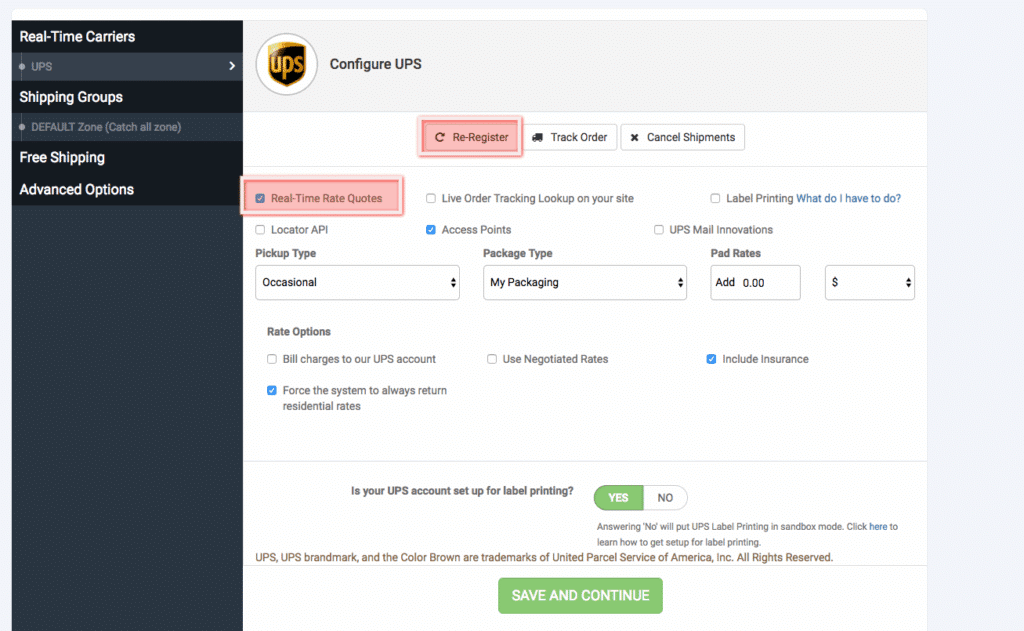
When you re-register, it will ask for the “ClientID” and “ClientSecret”, which you would get from oyur UPS app you created. Once you plugin those values, click Save and Continue, and youwill be take to UPS.com to authenticate your app by logging into UPS.com.
Once you are done with this step, you are good to go, and now you just have to ensure you have added the right UPS Shipping Methods into the right Shipping Zones, if that is not already setup.